screen time limit app
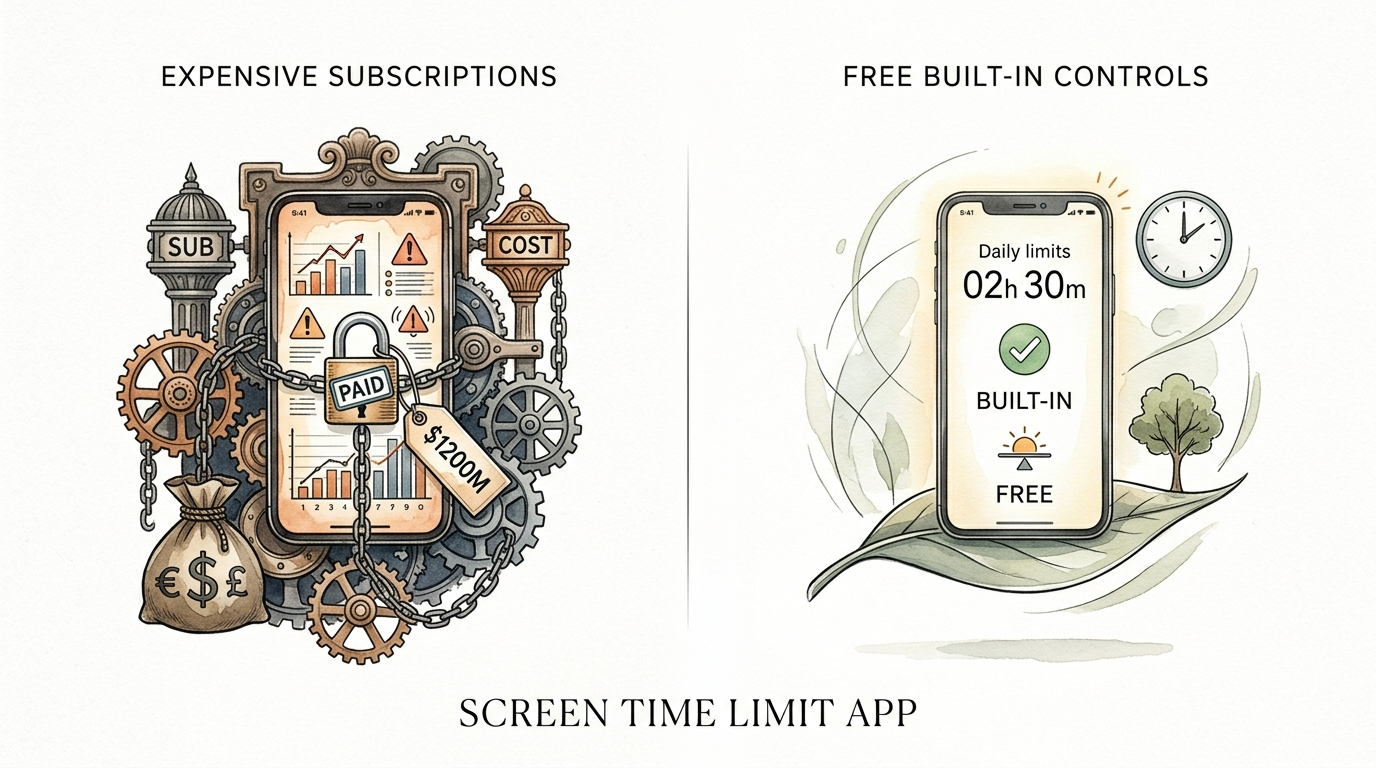
Stop paying for features you already own. Don’t get tricked into monthly fees. Most parents don’t realize the most powerful screen limit apps are the free ones built into the OS.
You probably just spent a small fortune on a new smartphone or tablet for your child. The last thing you need is another $10-a-month subscription bleeding your bank account dry. Marketed as “all-in-one” safety solutions, many third-party apps actually offer less stability than the tools already sitting in your settings menu.
These built-in systems aren’t just free; they are more powerful because they operate at the system level. They don’t need “permissions” to work—they are the permission. Whether you are dealing with a toddler who won’t put down the iPad or a teen who thinks 2:00 AM is a great time for TikTok, the solution is already in your hand.
In this guide, we are going to strip away the marketing fluff. We will show you exactly how to master the native controls on your devices, outsmart the cleverest loopholes, and keep your kids safe without spending a dime on expensive subscriptions.
screen time limit app
A screen time limit app is a digital management tool designed to monitor, report, and restrict the amount of time a user spends on a specific device or individual applications. While many parents search for these as standalone software, the term actually encompasses the built-in frameworks of modern operating systems like iOS, Android, and Windows.
These tools exist to solve a modern problem: the “infinite scroll” and the dopamine-driven design of modern social media. In a real-world situation, a screen time limit app acts as the digital equivalent of a kitchen timer or a curfew. It allows you to set a hard stop for the day (Downtime) or a budget for specific categories like “Games” or “Social Media.”
Think of it like a smart circuit breaker for your child’s digital life. When the “budget” is spent, the app icon dims or disappears, and the child is met with a polite but firm message that their time is up. It’s not just about restriction; it’s about providing a framework for children to learn self-regulation in a world that is designed to keep them glued to a screen.
Most importantly, these tools provide visibility. They give you a weekly report showing exactly where the time went—helping you see if your child is actually using their tablet for “homework” or if they’ve been in a four-hour Minecraft binge. By using the tools built into the OS, you get more accurate data and more reliable blocking than any third-party app could provide.
How It Works: Mastering the Tools You Already Have
To stop paying for subscriptions, you need to know how to navigate the settings of the two giants: Apple and Google. Both have incredibly deep systems that most parents only scratch the surface of.
Apple Screen Time (iOS and iPadOS)
Apple’s Screen Time is a powerhouse built directly into the iPhone and iPad kernel. Because it is part of the system, it is much harder for kids to “force quit” or bypass than a third-party app from the App Store.
- Family Sharing: First, you must set up a “Family Sharing” group. This allows you to manage your child’s settings from your own phone. Go to Settings > [Your Name] > Family Sharing to invite them.
- Downtime: This is your digital curfew. You can set a schedule (e.g., 8:00 PM to 7:00 AM) where only essential apps like “Phone” and “Messages” work. Everything else is locked.
- App Limits: Instead of a total lockout, you can set a daily budget for categories. For example, give them 1 hour for “Social” and 2 hours for “Games.” Once the time is up, the apps lock automatically.
- Content & Privacy Restrictions: This is where you hide the “bad stuff.” You can block adult websites, prevent them from installing or deleting apps, and even turn off in-app purchases so you don’t get a surprise $200 bill for Roblox currency.
- Communication Safety: A newer feature that can detect if a child receives or is trying to send photos that might contain nudity, providing a warning and resources.
Google Family Link (Android and ChromeOS)
If your child has an Android phone or a Chromebook, Google Family Link is the gold standard. It functions as a remote control for their entire Google account.
- Daily Limits: You can set a total “screen time budget” for the day. Once they hit 3 hours, the phone locks. You can even set different limits for weekends vs. weekdays.
- Bedtime: Similar to Apple’s Downtime, this locks the phone during sleeping hours. The device becomes a brick, only allowing emergency calls.
- App-Specific Management: You can see a list of every app on their phone and set specific limits for each. Want them to have unlimited access to a calculator but only 20 minutes of YouTube? This is how you do it.
- Remote Lock: If it’s time for dinner and they won’t put the phone down, you can hit “Lock Now” on your device, and their phone will instantly freeze.
- Location Tracking: Built-in GPS tracking allows you to see where they are on a map without needing a separate tracking app.
Benefits of Built-in Controls
Choosing the built-in screen time limit app over a paid third-party alternative offers several massive advantages that go beyond just saving money.
System-Level Stability: Third-party apps like Qustodio or Bark often rely on a “VPN” or “MDM” profile to manage the device. These can be buggy, slow down the internet, or be easily deleted by a tech-savvy kid. Built-in tools are part of the operating system code. They don’t lag, and they don’t break when the OS updates.
Unmatched Privacy: When you use a third-party app, you are often handing over your child’s web history, location data, and private messages to a private company. Apple and Google already have this data; by using their native tools, you aren’t adding another company to the list of people tracking your family.
Battery Life: Third-party monitoring apps run constantly in the background, which can drain a phone’s battery significantly. Native controls are highly optimized and have almost zero impact on performance or battery life.
Zero Cost: The most obvious benefit. Why pay $99 a year for a “Premium” parental control suite when Screen Time and Family Link offer 90% of the same features for free? That money is better spent on their college fund or a family dinner.
Challenges and Common Mistakes
Even the best screen time limit app can fail if the setup is sloppy. Kids are “digital natives,” and they will find the path of least resistance to get back to their games.
The Passcode Pitfall
The most common mistake is using a Screen Time passcode that is the same as the phone’s unlock code. Your child watches you type it in once, and the game is over. Always use a unique, 4-digit code for Screen Time that your child cannot guess. Avoid birthdays or simple patterns like 1-2-3-4.
Ignoring “Always Allowed” Apps
By default, some apps might be set to “Always Allowed.” If you leave “Messages” or “Safari” on this list, your child can spend all night chatting or browsing even when Downtime is active. Audit your “Always Allowed” list and keep it strictly to essentials like the Phone and Maps.
The Re-install Hack
If you don’t restrict “Installing Apps” and “Deleting Apps” in the settings, a child can simply delete Instagram when they hit their limit, then re-download it from the App Store to “reset” the timer. You must toggle off the ability to delete or install apps without your permission.
The Time Zone Trick
A classic loophole involves the child changing the phone’s “Date & Time” to a different time zone where Downtime hasn’t started yet. To fix this on iOS, go to Settings > Privacy > Location Services > System Services and ensure “Setting Time Zone” is locked, then restrict “Location Services” changes in Screen Time.
Limitations: When This May Not Be Ideal
While built-in tools are excellent, they are not perfect. There are specific scenarios where they might fall short for your family’s needs.
The “Mixed-Device” Household: If you use an iPhone but your child uses an Android, managing them is difficult. You can run the Google Family Link app on an iPhone to manage an Android child, but Apple does not allow you to manage an iPhone from an Android device. If your family is split between ecosystems, you may face friction.
Advanced Content Scanning: Built-in tools are great at blocking apps but not great at monitoring content. If you need to know exactly what words your child is typing in a text or if they are being cyberbullied on a specific platform, native tools won’t help. They prioritize privacy, which means they don’t “spy” on the actual text of messages.
Cross-Platform Limits: If your child has 1 hour of screen time on their iPad and 1 hour on their PlayStation, the systems don’t talk to each other. They effectively get 2 hours. Paid apps like “Circle” can sometimes manage this at the router level, but native tools are limited to their own hardware.
Comparison: Built-in vs. Paid Subscriptions
| Feature | Built-in (Free) | Paid Apps ($100+/yr) |
|---|---|---|
| Cost | $0 (Forever) | Monthly/Yearly Fee |
| Stability | Excellent (Native) | Average (VPN/MDM based) |
| Web Filtering | Basic (Best in Safari/Chrome) | Advanced (Category-based) |
| Social Media Scan | Limited/None | Deep (Bark/Qustodio) |
| Ease of Bypass | Difficult (if set correctly) | Moderate (Kids find VPN hacks) |
Practical Tips and Best Practices
Setting up the screen time limit app is only half the battle. To make it work in a real home, you need a strategy that doesn’t feel like a constant war.
- The Digital Contract: Sit down with your child and agree on the limits before you set them. Explain that the phone is a privilege, and the screen time app is just a tool to help them stay balanced. If they show responsibility, you can increase the limits.
- Use the “One More Minute” Rule Wisely: Apple has a feature where kids can request “One More Minute” when a limit is hit. This is great for finishing a level or a video, but it can be abused. Watch for children who use this to chain minutes together indefinitely.
- Schedule “Screen-Free Zones”: Don’t just rely on the app. Make the dinner table and bedrooms “No-Phone Zones” for everyone—including parents. Modeling the behavior is more effective than any software.
- The “Soft Landing”: Instead of letting the phone just “die” at 8:00 PM, give them a 10-minute warning verbally. It helps their brain transition from the high-dopamine state of the screen to the lower-stimulation environment of reality.
Advanced Considerations: Going Beyond the Device
If you have a child who is a literal “hacker-in-training,” you might need to go beyond the individual device settings.
DNS Filtering: You can set your home Wi-Fi to use a service like Cloudflare for Families (1.1.1.3). This blocks adult content at the network level, so it doesn’t matter what device or browser they use; the “bad stuff” simply won’t load.
Router-Level Scheduling: Most modern routers (like Eero, Orbi, or Google Nest Wifi) have their own built-in screen time limit app features. You can group your child’s laptop, phone, and gaming console together and cut their internet access entirely at a certain time. This is the ultimate “kill switch” that no device-level hack can bypass.
Apple Watch “Schooltime”: If your child has an Apple Watch, use the “Schooltime” feature. This locks the watch into a specific, non-distracting watch face during school hours, only allowing emergency calls. It’s a great way to ensure they aren’t playing with their watch in class.
Example Scenario: The “YouTube Rabbit Hole”
Imagine your 10-year-old is obsessed with YouTube. You’ve noticed they start watching “educational” videos but end up watching strange gaming clips three hours later. Here is how you would use your free tools to solve this:
- Set a Category Limit: On iOS or Android, go to App Limits and set “Entertainment” or specifically “YouTube” to 45 minutes.
- Enable Restricted Mode: Inside the YouTube app settings, toggle on “Restricted Mode” to filter out mature content.
- Lock the Settings: Use your Screen Time or Family Link passcode to ensure they can’t turn these features off.
- Review the Report: At the end of the week, look at the report together. If they stayed within the 45-minute limit without complaining, maybe “reward” them with an extra 15 minutes on Saturday.
This approach turns the screen time limit app from a “police officer” into a “coach,” helping the child understand that time is a finite resource.
Final Thoughts
Stop paying for features you already own. You don’t need a $150-a-year subscription to tell your kid it’s time for bed. The most effective screen time limit app is the one built into your device’s core. It’s faster, more secure, and infinitely more stable than third-party alternatives that struggle to stay active in the background.
By mastering Apple Screen Time or Google Family Link, you take back control of your home’s digital environment. You move away from being the “bad guy” who constantly nags, and you let the system be the objective timer. This shift reduces conflict and helps your children develop the self-discipline they will need for the rest of their lives.
Experiment with the settings today. Lock down the passcodes, audit the “Always Allowed” list, and set a realistic budget. You’ll be surprised how much peace a few free toggles can bring to your household. And once you’ve mastered these, you might want to look into network-level filtering to turn your entire home into a safe digital sanctuary.
Sources
1 impulsec.com | 2 timily.app | 3 security.org | 4 childandfamilydevelopment.com | 5 jfcs.org | 6 screenwiseapp.com | 7 forbes.com | 8 reddit.com | 9 forbes.com | 10 protectyoungeyes.com | 11 impulsec.com | 12 pcmag.com | 13 raisingdigitalcitizens.com