screen time limit iphone
Is the phone using them, or are they using the phone? The iPhone is built to be a distraction, but its built-in settings can transform it into a focused tool. Learn how to lock it down effectively.
Most people treat their smartphone like a slot machine. They pull the “notification lever” and wait for a hit of dopamine. This turns a multi-thousand-dollar piece of technology into a distraction machine.
Modern iOS updates have provided the antidote. You have the power to decide exactly when and how your device communicates with you. You can move from being a passive consumer to a precision operator. This guide will show you exactly how to regain your focus.
screen time limit iphone
A screen time limit iphone setting is a digital boundary designed to help users manage their relationship with technology. It is a native suite of tools within iOS that tracks usage and enforces restrictions on specific apps or categories. On average, Americans check their phones 186 times every single day. Without a limit, this habit can consume over four hours of your day, adding up to roughly 72 days a year spent staring at a screen.
The system exists because modern apps are engineered for “infinite scroll.” They are designed to keep you engaged as long as possible. A screen time limit acts as a speed bump. It forces a moment of conscious choice where there was previously only an automatic habit.
In the real world, these limits are used for more than just parental controls. Professionals use them to “brick” their phones during deep work hours. Students use them to ensure social media doesn’t bleed into study time. Even casual users implement them to improve sleep hygiene by silencing the digital world before bed.
How Screen Time Limits Actually Work
The Screen Time system operates on a hierarchy of restrictions. You can find these settings by navigating to Settings > Screen Time on your device. It works by monitoring “App & Website Activity,” which tracks every second an app is active on your screen.
The core of the system is the Screen Time Passcode. This four-digit code is separate from your lock screen passcode. Setting this is vital if you want to prevent yourself from simply tapping “Ignore Limit” when the timer runs out. Some high-productivity users even have a trusted friend or spouse set this code so they cannot bypass their own restrictions.
Once enabled, the system offers several distinct levers:
- Downtime: This is a scheduled block of time where only specific apps you choose (and phone calls) are available.
- App Limits: You can set daily time allowances for specific apps or entire categories like “Social” or “Games.”
- Communication Limits: This controls who can reach you via Phone, FaceTime, and Messages during both allowed time and Downtime.
- Always Allowed: These are your essential tools, such as Maps, Calendar, or your work email, that stay active regardless of other limits.
The Benefits of Setting Boundaries
Reducing screen time offers measurable physiological and mental advantages. Excessive use is linked to the thinning of the cerebral cortex in young adults, which is the area responsible for memory and cognitive function. By setting limits, you allow your brain to exit the “high-stimulation” state that causes mental fog.
The primary benefit is restored focus. When you remove the option to mindlessly scroll, you force your brain to find engagement in deep work or real-world social interaction. This often leads to a significant reduction in anxiety and depression symptoms, as you are no longer constantly comparing your life to curated digital feeds.
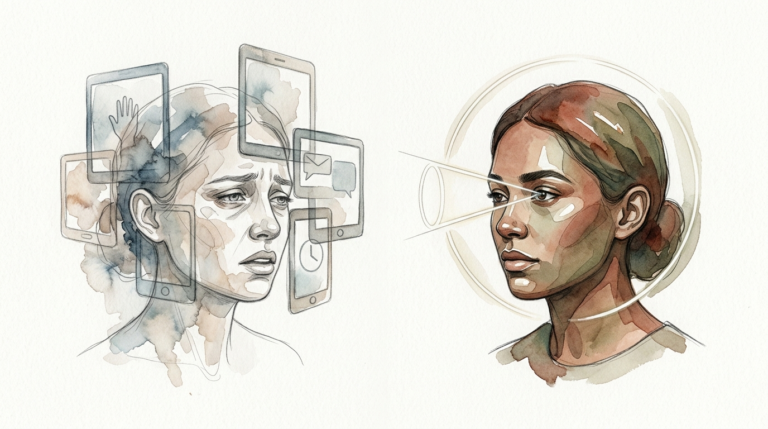
Physical health also improves. Apple’s Screen Distance feature, found within Screen Time settings, helps reduce eye strain and the risk of myopia. It uses the TrueDepth camera to alert you if you are holding your phone closer than 12 inches for an extended period. Additionally, using Downtime to block blue light before bed helps regulate your circadian rhythm for better sleep.
Challenges and Common Mistakes
The biggest pitfall in setting a screen time limit iphone users face is the “One More Minute” trap. When a limit is reached, iOS gives you the option to extend the time by 60 seconds. For many, this becomes a recurring button press that renders the limit useless.
Another common mistake is Category Overlap. Apple groups apps into broad categories like “Productivity” or “Social.” If you limit “Social” to one hour, but use Discord for work and Instagram for leisure, you might find yourself locked out of a work tool prematurely. It is usually better to set limits for specific, problematic apps rather than entire categories.
Syncing issues can also cause frustration. If you have “Share Across Devices” enabled, your total time on an iPad will count toward your iPhone limits. Users often forget this and wonder why their “Social” limit is gone by noon. To fix this, ensure your iCloud sync is stable or manage devices individually if your use cases for each device are different.
Limitations to Keep in Mind
Screen Time is not a magic bullet for productivity. It cannot distinguish between productive and unproductive use within the same app. For example, if you use a browser to research a project or to read celebrity gossip, the system sees both as “Safari” time.
The system also has environmental boundaries. It is relatively easy for a determined user to “hack” their own limits by changing the system clock or using a secondary device that isn’t synced. Because Apple prioritizes user convenience, they haven’t made the limits “unbreakable” for adults. It still requires a level of personal discipline to respect the boundaries you have set.
Furthermore, some apps are notoriously difficult to categorize. Messaging apps that have “stories” or “discovery” feeds (like Snapchat or Telegram) often bypass the spirit of a “Communication” limit by providing endless entertainment content.
Comparing App Limits vs. Downtime
Understanding which tool to use depends on your specific goals. While they both restrict access, they serve different psychological purposes.
| Feature | Function | Best Use Case |
|---|---|---|
| App Limits | Sets a fixed duration (e.g., 30 mins) per day. | Curbing social media or gaming addiction throughout the day. |
| Downtime | Blocks almost all apps during a specific window. | Ensuring a phone-free sleep schedule or “Deep Work” mornings. |
| Always Allowed | Exempts specific apps from all restrictions. | Essential utilities like Maps, Music, or Notes. |
Practical Tips for Immediate Results
Start by auditing your current usage. Go to the “See All App & Website Activity” view to find your “honest numbers.” Look specifically at Pickups. If your pickups are over 100 a day, you are likely checking your phone reactively rather than intentionally.
Apply the 20-20-20 rule for physical health. Every 20 minutes, look at something 20 feet away for 20 seconds. This prevents the “screen stare” that causes headaches. You can use Screen Time’s Screen Distance feature as a backup to keep your device at a healthy distance.
Try a “mental gray scale.” Navigate to Settings > Accessibility > Display & Text Size > Color Filters and turn your phone to grayscale. When combined with app limits, this makes the screen significantly less rewarding to look at. The lack of vibrant colors kills the dopamine loop that keeps you scrolling.
Advanced Strategies for Serious Practitioners
Serious users should look beyond basic timers and explore Focus Modes. You can link a specific Focus Mode (like “Work”) to a custom Home Screen that only displays your most important tools. This effectively “bricks” the distracting parts of your phone while you are in a specific mental state.
You can also use Focus Filters. These allow you to hide specific content within apps. For example, you can set a filter so that when you are in your “Work” Focus, you only see your professional calendar and not your personal one. This reduces the cognitive load of filtering out irrelevant information manually.
For the ultimate lock-down, use Shortcuts and Automations. You can create an automation that says “When [Social Media App] is opened, start a 15-minute timer.” Or, even more aggressively, an automation that closes the app immediately if it is opened during a Focus Mode. This creates a level of friction that is much harder to ignore than a simple system notification.
Examples of Practical Application
Consider the “Deep Work Setup” used by high-output professionals. They set Downtime to start at 8:00 PM and end at 11:00 AM the next day. This ensures the first few hours of their workday are entirely offline. They then add App Limits of 15 minutes for any news or social apps to prevent “doomscrolling” during lunch breaks.
Another scenario is the “Student Mode.” A student might set Communication Limits so only parents can call during school hours. They could also use Content & Privacy Restrictions to block specific “adult” or distracting websites entirely, removing the temptation to browse during lectures. This turns the iPhone into a glorified calculator and notebook during the day.
Final Thoughts
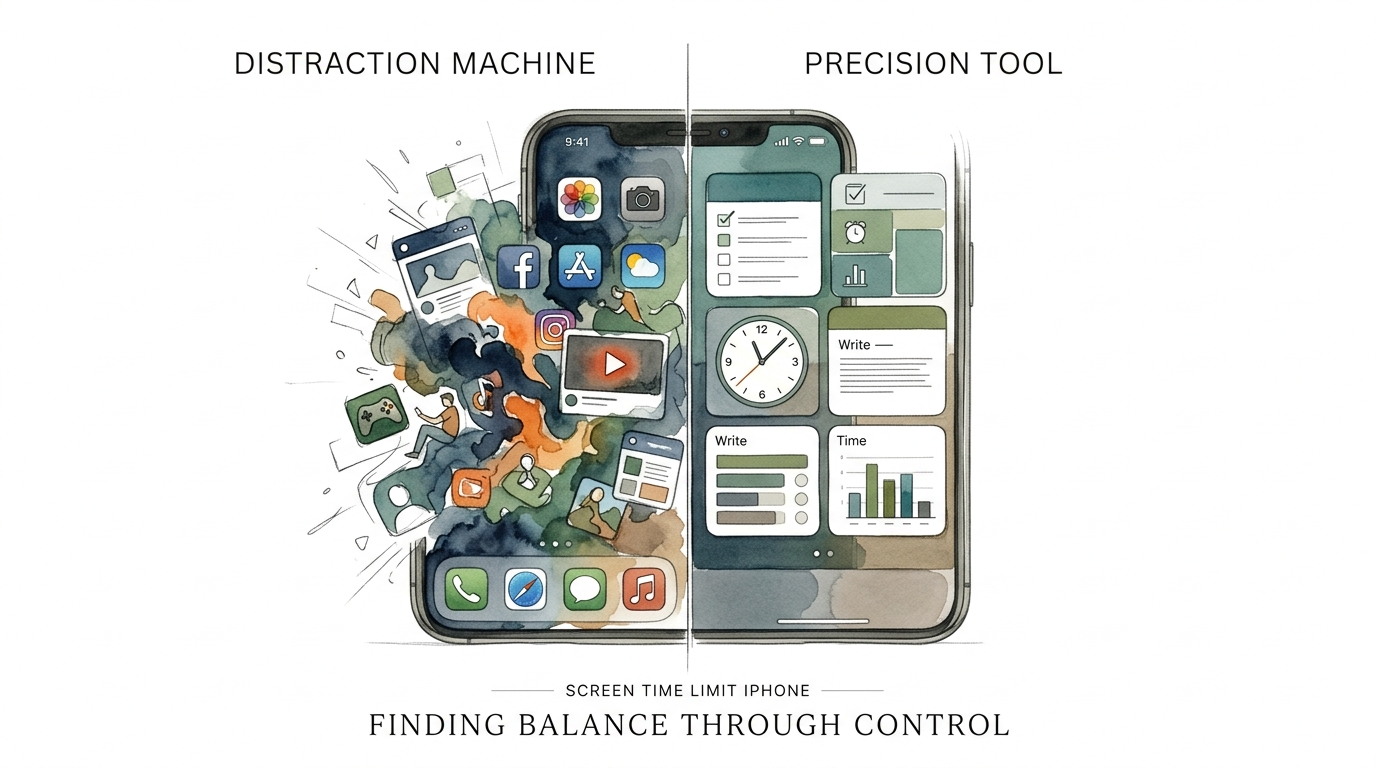
The iPhone is one of the most powerful tools ever created, but it is also a masterfully designed distraction machine. Taking control of your screen time limit iphone settings is the first step in reclaiming your attention. It isn’t about deprivation; it is about intentionality.
By implementing these steps, you shift the power dynamic. You decide when the world gets to talk to you. You decide how much of your life is lived through a glass pane. Experiment with the settings, find the friction points that work for you, and don’t be afraid to be aggressive with your limits.
Start small if you need to. Set a limit for your most distracting app tonight. Observe how your brain reacts to the block. Over time, you will find that the less you use the phone for mindless consumption, the more valuable it becomes as a precision tool.
Sources
1 youtube.com | 2 apple.com | 3 youtube.com | 4 youtube.com | 5 getdull.app | 6 timingapp.com | 7 jaimedicalsystems.com | 8 castcenters.com | 9 medium.com | 10 stanford.edu | 11 apple.com | 12 youtube.com | 13 apple.com | 14 medium.com | 15 apple.com