screen time iphone
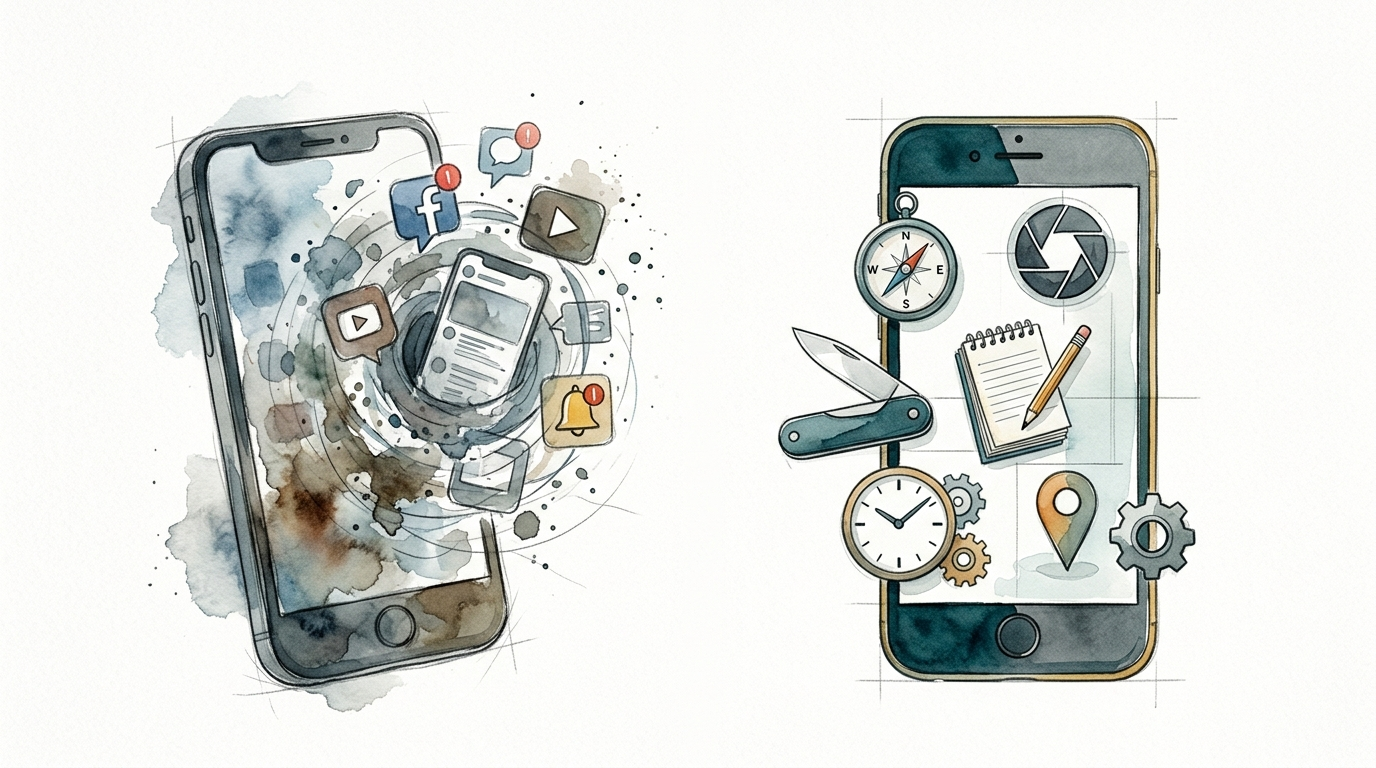
Is your iPhone a slot machine or a Swiss Army knife? Your phone is either a black hole for your time or a powerful tool for your life. The difference is in how you configure your multi-use device. Here is how to audit your home screen.
Most users pick up their phones to check a single message and end up “doomscrolling” the equivalent of 10 kilometers on Instagram. This is not an accident. It is the result of a device designed to capture attention rather than facilitate intention. Transforming your device requires moving from a passive consumer to an active architect of your digital environment.
Recent data shows Americans now spend an average of 5 hours and 16 minutes per day on their phones. For Gen Z, that number climbs to 6 hours and 27 minutes. If you do not have a system to manage this, your phone will manage you.
screen time iphone
The screen time iphone feature is a built-in utility designed to give users visibility and control over their digital habits. It serves as a diagnostic tool for your “digital health,” providing granular data on which apps you use, how often you pick up your device, and which notifications are the most disruptive.
Apple introduced this feature to address growing concerns about smartphone addiction and cognitive overload. In the real world, Screen Time is used to set “App Limits” for social media, schedule “Downtime” during sleep hours, and restrict specific content for children. It acts as a mirror, reflecting your actual priorities versus your intended ones.
For most, the “Screen Time” menu is a place of guilt. You see a 14% increase in usage year-over-year and wonder where the hours went. However, when used as a management system rather than a scoreboard, it allows you to identify the “black hole” apps that provide high dopamine but low value.
How to Audit Your Home Screen: Step-by-Step
Auditing your home screen is about adding friction to bad habits and removing it from good ones. Most people leave their most addictive apps on the first page, making them the path of least resistance.
Step 1: The Two-Page Rule
Limit your visible home screens to just two pages. The first page should only contain “Utility” apps—tools that help you navigate the world, such as Maps, Calendar, Notes, and a Camera. The second page should hold “Secondary” apps you use regularly but don’t want to be tempted by, like banking or travel tools. Everything else should live in the App Library, hidden from view.
Step 2: Cleanse the Dock
The dock is the most valuable real estate on your phone. If it contains social media or email, you are inviting distraction every time you unlock the screen. Replace these with “High-Value” tools like a Kindle app for reading or a task manager for productivity.
Step 3: Eliminate Notification Badges
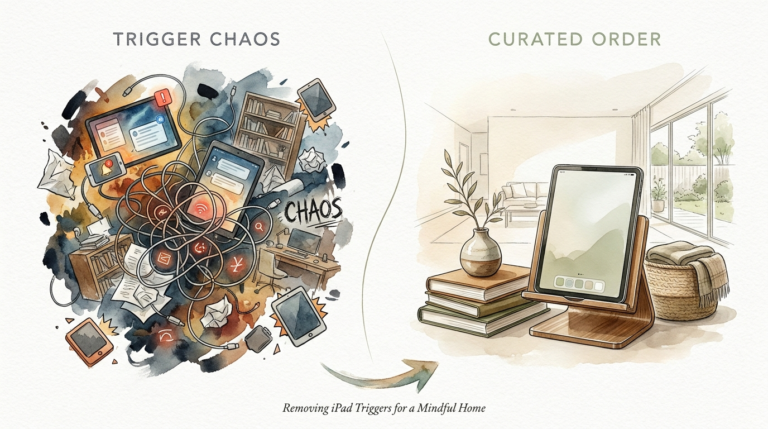
The “Red Dot Effect” is a psychological trigger. Red is a color associated with urgency and danger, causing your brain to seek “closure” by clicking the app. Go to Settings > Notifications and turn off “Badges” for every app that isn’t mission-critical. You will find that without the red dot, your urge to check Instagram drops significantly.
Step 4: Leverage iOS 18 Customization
If you are running iOS 18, you can now place icons anywhere and use “Large” icons that remove the text labels. This creates a minimalist look that reduces visual clutter and cognitive load. Tinted mode can also be used to make all icons a uniform, muted color, further reducing the dopamine hit from bright, colorful logos.
Benefits of the Multi-Tool Setup
Choosing to configure your iPhone as a Multi-Tool rather than a Distraction Box offers measurable benefits for your focus and mental clarity.
- Reduced Cognitive Load: A clean interface allows your brain to process information faster without being bombarded by competing icons.
- Increased Flow State: Studies show it takes roughly 23 minutes to regain full focus after a single notification interruption. By silencing the noise, you protect your deep work hours.
- Improved Time Management: When your phone is a tool, you pick it up to finish a task and put it down immediately after. This can save the average user over 2 hours of “junk” screen time per day.
- Emotional Stability: Removing the constant “urgency” of red dots and alerts reduces the background anxiety often associated with “Inbox Zero” culture and social validation loops.
Challenges and Common Mistakes
The biggest mistake users make is relying on willpower. Research confirms that willpower is a finite resource that weakens throughout the day. If you have to “decide” not to click on TikTok every time you see the icon, you will eventually fail.
The Variable Reward Trap
Notifications create a “variable reward schedule,” similar to a slot machine. You don’t know if the buzz is a work emergency or a spam email, so your brain releases dopamine in anticipation. If you don’t turn off non-essential notifications, you remain a victim of this loop.
Ignoring the “Dismiss” Button
Many users set App Limits in Screen Time but habitually click “Ignore Limit for Today.” This trains your brain to treat limits as suggestions rather than boundaries. To avoid this, have a partner or friend set the Screen Time passcode so you cannot bypass it easily.
Limitations of Digital Minimalism
A perfect home screen setup is not a cure-all for productivity. There are realistic constraints where these methods may not suffice.
Environmental factors often override digital settings. If your job requires you to be “on call” via Slack or WhatsApp, you cannot fully embrace a “distraction-free” setup without professional repercussions. In these cases, the trade-off is between mental peace and career availability.
Furthermore, these setups require initial “setup friction.” Configuring Focus Modes and cleaning the home screen takes time and effort. For many, the complexity of managing these systems becomes a distraction in itself—a phenomenon known as “procrastivity,” where you spend hours organizing your productivity tools instead of doing the actual work.
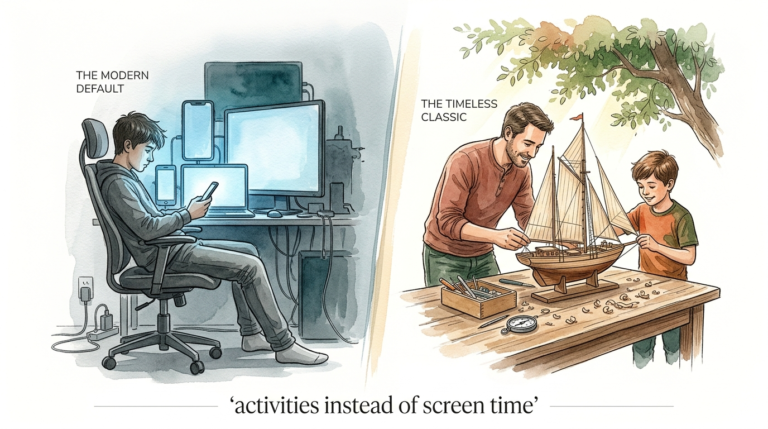
Distraction Box vs. Multi-Tool
| Feature | Distraction Box (Stock) | Multi-Tool (Optimized) |
|---|---|---|
| App Placement | Social media on page 1 | Utilities only; Social hidden |
| Notifications | Banners and Red Badges active | Critical alerts only; No badges |
| Visual Style | Bright, varied colors | Grayscale or Tinted minimalist |
| Purpose | Entertainment and scrolling | Specific task execution |
Practical Tips for Immediate Application
- Use Search for Everything: Instead of hunting for apps on your screen, swipe down and type the name of the app you need. This adds a layer of intentionality to every action.
- Enable Grayscale: Go to Settings > Accessibility > Display & Text Size > Color Filters. Turning your phone black and white makes the bright icons of social media far less appealing to your brain.
- Set Location-Based Focus: Configure a “Work” Focus mode that automatically activates when you arrive at your office. This can hide all social apps and only show your professional emails and tools.
- Control Center Cleanup: Remove distractions from your Control Center. Keep only functional toggles like the Flashlight, Calculator, and Timer.
Advanced Considerations: Focus Filters
Serious practitioners should explore Focus Filters. These allow you to change how apps behave based on your current Focus mode. For example, in “Deep Work” mode, you can set a filter to only show specific mail accounts or calendar events, effectively partitioning your digital life.
Scaling this setup across the Apple ecosystem is also vital. Ensure that your Focus modes sync across your iPad, Mac, and Apple Watch. This prevents a “leak” where a notification silenced on your phone still buzzes on your wrist, breaking your concentration.
Scenario: The Intentional Morning
Imagine waking up and picking up your phone. In a standard setup, you see 14 notifications, three red badges on Instagram, and a news alert. By 7:05 AM, you are reacting to the world’s demands.
In a Multi-Tool setup, your phone is in “Sleep” or “Morning” Focus. Your lock screen is blank except for your first calendar appointment and the weather. There are no notifications. You use the phone to check your schedule, start a 10-minute meditation app, and then put it back on the charger. You have used the tool without falling into the black hole.
Final Thoughts
The average person will spend nearly 20 years of their life staring at a screen if current trends continue. For Gen Z, that projection reaches 28.8 years. Reclaiming your time starts with a simple home screen audit. By treating your iPhone as a Swiss Army knife—a tool for specific tasks—rather than a slot machine designed for endless play, you take back the most valuable asset you have: your attention.
Experiment with these configurations for one week. Move your social media to the App Library, turn off your notification badges, and see how many fewer times you feel the “phantom” urge to check your device. You may find that the world doesn’t stop turning just because you stopped scrolling.
Your phone is a powerful servant but a terrible master. The choice of which role it plays in your life is made one icon at a time.
Sources
1 medium.com | 2 medium.com | 3 lifeat.io | 4 applemagazine.com | 5 harmonyhit.com | 6 zdnet.com | 7 medium.com | 8 luriechildrens.org | 9 medium.com | 10 youtube.com | 11 thesaturdaymindset.com | 12 substack.com | 13 netpsychology.org | 14 reddit.com | 15 apple.com | 16 medium.com | 17 youtube.com | 18 blankspaces.app